

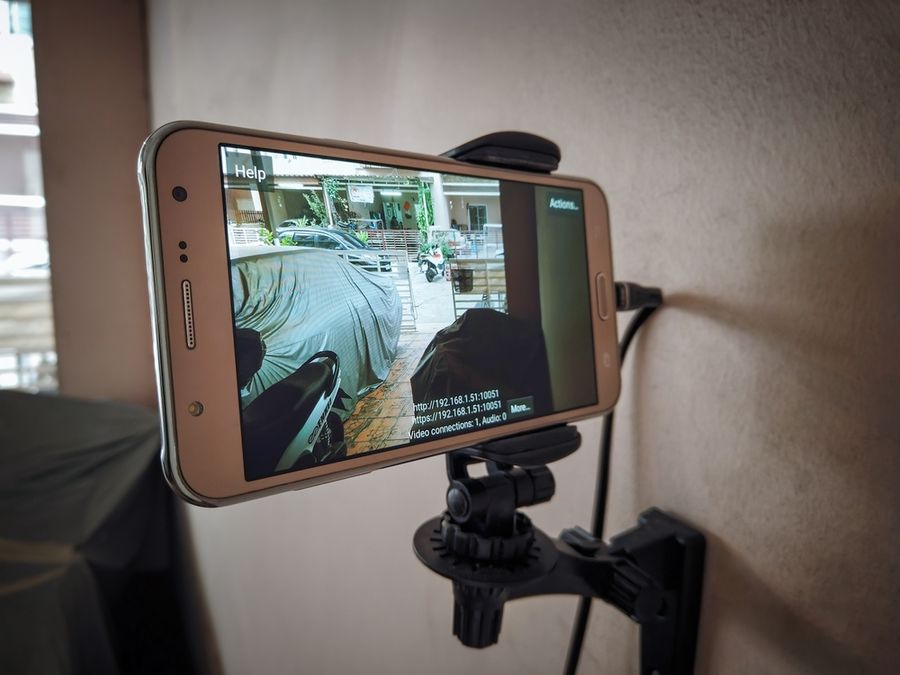
An old smartphone may no longer handle daily calls, photos, or new apps well, but its camera can still be useful. With the right monitoring app, a stable Wi-Fi connection, and a safe power setup, the device can watch an entryway, pet area, garage, or spare room. It may not provide every feature of a dedicated security system, but an old smartphone can offer practical indoor monitoring without leaving another usable device forgotten in a drawer.
Check Whether the Old Phone Is Suitable
Begin by inspecting the phone rather than immediately installing an app. The camera lens should be clear, the charging port should work, and the phone should connect reliably to Wi-Fi. Test both the front and rear cameras, since the rear camera will usually produce the better image. Confirm that the microphone and speaker also work if two-way audio or sound monitoring will be important.
The phone must still support a compatible monitoring app. As of July 2026, AlfredCamera recommends at least iOS 12 or Android 5.0 for a phone used as its camera device. A newer phone used to view the feed should run at least iOS 15 or Android 7.0. The service also recommends keeping at least 400 MB of internal storage available when using activity detection or continuous recording.
Do not use a phone with a swollen battery, separated screen, damaged charging cable, exposed wiring, or unusual heat. A device that shuts down repeatedly or loses its Wi-Fi connection may also be too unreliable for this job. Repurposing makes sense only when the phone can remain stable for long periods without creating a safety concern.
Choose the Right Camera App
The easiest method is to use an app designed to turn one mobile device into a camera and another into a viewer. AlfredCamera supports retired Android phones, iPhones, and tablets as camera devices. After the same account is connected on both devices, one phone can be assigned to capture video while the other displays the live feed. The viewing device can also be a supported web browser on a computer.
Android users who prefer local-network viewing can consider IP Webcam. The app can turn an Android phone into a network camera that is viewed through a browser or compatible media player. It supports streaming over a Wi-Fi network without an internet connection, while optional cloud broadcasting can provide access from outside the home. Available tools include motion detection, sound detection, recording, night mode, and several audio options.
Before choosing any app, review what is included without payment and what requires a subscription. Look closely at recording limits, saved-event history, motion alerts, advertisements, cloud storage, account sharing, and remote viewing. A no-fee app may be enough for occasional live checks, while dependable recording or longer event history may require a paid plan.
Prepare the Phone for Camera Duty
Remove personal files and accounts that are no longer needed. Photos, messages, work documents, saved passwords, and financial apps should not remain on a phone that will sit unattended. A full factory reset can provide a cleaner starting point, although the owner should first save anything that still matters and make sure the device is no longer needed for account verification.
After the reset, install current system updates if the phone still supports them. Choose a compatible monitoring app, such as AlfredCamera or Manything for a guided phone-to-phone setup, or IP Webcam or IP Camera for an Android-based network stream. Download the chosen app from the official Apple App Store or Google Play Store rather than from an unknown website. Create a strong, unique password for the camera account, and enable two-step verification when the service offers it.
The camera app will need access to the phone’s camera and may also request the microphone, notifications, local network, photos, or storage. Grant only the permissions required for the features being used. On newer Android versions, the Privacy Dashboard shows which apps accessed the camera, microphone, and other protected information. These permissions can also be changed later in the phone’s settings.
Connect the Camera and Viewer
The exact menu names differ by app, but the basic setup is simple. Install the monitoring app on both the old smartphone and the phone that will be used for viewing. Sign in or create an account, then use the viewer phone to add the old device as a camera. Follow the app’s pairing instructions, which may involve scanning a QR code. Once the devices are connected, open the live feed and test the picture before mounting the old phone in its final position.
Test the system before mounting the old phone. Walk through the viewing area, check whether motion alerts arrive, and listen to any recorded audio. View the feed while the main phone is using cellular data as well as home Wi-Fi. This reveals whether remote access is working rather than only local viewing.
Cloud-based services require dependable internet access on both sides. AlfredCamera states that its camera device needs a stable internet connection for activity detection, recording, and cloud uploads. The viewer also needs internet access for notifications, live viewing, and saved events. The phone used as the camera should remain plugged in when the owner is away.
Find a Useful Viewing Position
Choose a location based on what needs to be seen. For a front entrance, aim the camera toward the door from inside the home rather than placing the phone outdoors. For pets, use a lower angle that captures the floor and the animal’s usual path. A higher position may work better in a garage, living room, or hallway.
Avoid pointing the camera directly at a bright window. Strong backlighting can turn a person or object into a dark shape. Test the image in daylight and after dark because a good daytime position may perform poorly under lamps or low light. An old smartphone also lacks the true infrared night vision found in many dedicated security cameras, so some room lighting may be necessary.
Use a stable phone stand, clamp, wall shelf, or adjustable mount. Do not balance the device on books or lean it where a bump can change the angle. Keep the charging cable out of walkways and away from children or pets. The phone should also remain within a strong Wi-Fi area; weak reception can interrupt the feed and delay alerts.
Manage Continuous Power and Heat
Video streaming, Wi-Fi use, motion detection, and recording can drain a phone battery quickly. For dependable monitoring, the device will usually need a continuous power connection. Use a sound charging cable and power adapter that are compatible with the phone. Avoid damaged, loose, or very cheap accessories that become unusually warm.
Heat deserves special attention because charging and video streaming may happen at the same time. Apple explains that an iPhone battery warms while charging and that heat can reduce battery life. The company advises against using or charging an iPhone when the surrounding temperature is above 95 degrees Fahrenheit.
Place the phone in an open area with airflow. Do not cover it with fabric, place it on a radiator, seal it inside a cabinet, or leave it in direct sunlight. A thick protective case may also hold in heat. Check the setup during its first few hours of operation and again after a full day. Stop using the device if it becomes very hot, gives off an odor, changes shape, or displays a battery warning.
Improve Privacy and Account Security
A camera placed inside a home can capture sensitive conversations, daily routines, possessions, and family members. Keep it out of bedrooms, bathrooms, and other areas where people reasonably expect privacy. Household members and regular visitors should know when recording is taking place. Audio-recording laws can also vary, so audio should not be treated as an automatic feature in every setting.
Secure the home Wi-Fi network with a strong password and current router protection. Do not share the camera account widely, and remove access when another person no longer needs it. Review the app’s privacy details to understand whether footage is stored locally, uploaded to the cloud, retained for a set period, or shared with service providers.
Check the old phone regularly instead of treating it as a device that can be forgotten. Install available app updates, confirm that alerts still arrive, review account activity, and remove recordings that are no longer needed. An unsupported phone that can no longer receive security updates may eventually become a poor choice for internet-connected monitoring.
Understand What the Setup Cannot Do
An old smartphone can be useful for checking a pet, watching a room, or receiving basic motion alerts. However, it is not weatherproof, and it should generally remain indoors. It may also lose power during an outage, disconnect after an app crash, stop recording when storage is full, or miss activity when the Wi-Fi signal becomes weak.
Most phones also have a narrower security role than purpose-built cameras. They may lack battery backup, tamper resistance, wide viewing angles, sirens, professional monitoring, and direct integration with a larger alarm system.
For these reasons, the setup is better suited to low-risk monitoring than to protecting an entire property. It should not be the only safeguard for a vulnerable entrance, valuable business equipment, or a home that needs professional emergency response. Test alerts and live access often so a silent failure does not go unnoticed.
Give an Old Phone a Practical Second Role
Repurposing an old smartphone can provide a practical form of indoor monitoring when the device remains safe, compatible, and reliably connected. It will not replace a full security system, but it can give an unused phone a useful second role.
The best results come from careful preparation rather than simply leaving the phone plugged in. Choose a trusted app, remove personal information, control permissions, use a secure account, mount the device firmly, and watch for excess heat. With regular checks and realistic expectations, an unused phone can become a convenient monitoring tool instead of electronic clutter.
We created this article in conjunction with AI technology, then made sure it was fact-checked and edited by a TopicTangent editor.